
Prepared by SJK Creative & Tech · Updated November 9, 2026
1. Find out which Outlook version you are using
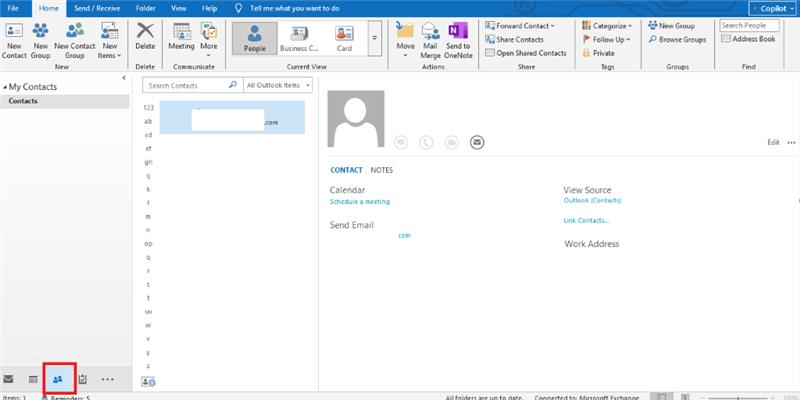
Classic Outlook, new Outlook and Outlook on the web do not necessarily expose the same locally saved contacts. Open People/Contacts and check which account and contact folder is selected.
An IMAP or Gmail mail connection can restore your messages while failing to recover contacts or groups that were stored only inside a local Outlook data file.
2. Check the cloud before changing files
Sign in directly to your Microsoft account, Microsoft 365 People or Google Contacts in a browser. Check whether the missing contact names or lists appear there.
In classic Outlook, expand all available contact folders and look for Contacts (This computer only) and contacts belonging to a separate Outlook data file.
3. Protect the old Outlook data
If the previous PC still exists, make an untouched backup of relevant Outlook data files before modifying them. A real PST can hold contacts and contact groups; an IMAP synchronized mail store should not be assumed to contain those local-only items.
Common places to investigate include Documents/Outlook Files and the prior Windows profile’s Outlook data folder. Do not rename an arbitrary file to .pst.
4. Choose the right import method
Microsoft supports importing CSV contacts into Outlook. Select the correct destination Contacts folder, and carefully review the duplicate-handling option.
A simple CSV is best for individual contacts, not a guarantee that complex classic Outlook contact-group membership will survive. Where groups are critical, examine the original source profile or PST backup.
5. Make the address book portable
After confirming the result, export verified contacts and store the backup securely. Consider a supported account-backed contacts folder so the next computer move is less dependent on one local profile.
Do not bulk-delete duplicates or wipe older profiles until you can confirm the complete address book, distribution lists and contact counts are backed up.