
FREE SJK TROUBLESHOOTING GUIDE / WINDOWS SUPPORT
Gaming PC turns on but the monitor says No Signal?
A black screen, “No HDMI Cable,” or “No Signal” message may come from the monitor input, display cable, graphics output or a computer that has not completed startup. Start with visible evidence—not an assumed GPU replacement.
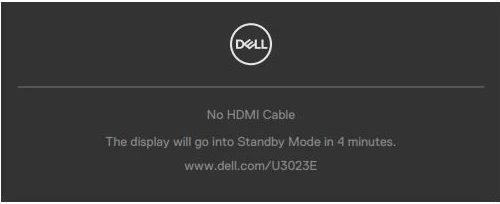 ACTUAL DELL MONITOR OSD · NO HDMI CABLE
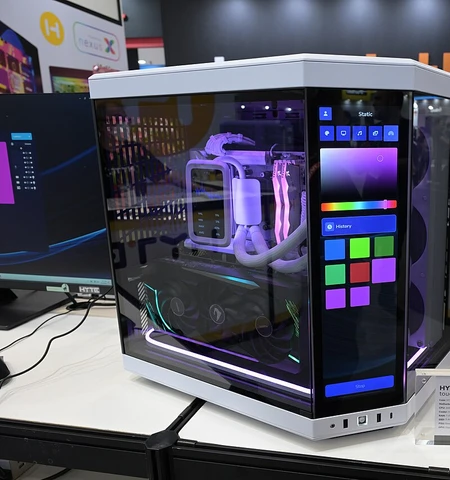 REAL HARDWARE · HYTE Y70
← All free troubleshooting guides
Secure Boot or TPM error instead?
A security requirement shown by Call of Duty or Windows is not the same as a monitor reporting No Signal. Use the Secure Boot & TPM 2.0 checklist for that separate issue.
1. Confirm the monitor and input source
Turn on the monitor and open its built-in on-screen menu. Select the same HDMI or DisplayPort input that the computer cable actually uses. If the monitor reports “No HDMI Cable,” that identifies a missing signal on that selected input; it does not automatically prove a graphics card failed.
2. Check the cable and video output
Power down the equipment before reconnecting cables. Reseat both ends of the HDMI or DisplayPort cable and check for damage. On a desktop with a dedicated graphics card, the monitor normally connects to one of the graphics card's own outputs, not a motherboard port that may be inactive. If practical, test a different known-good cable and monitor input.
3. Distinguish an input problem from a startup problem
If another monitor or cable works, the display path is implicated. If no monitor shows a picture, observe whether the computer actually turns on, whether its fans and diagnostic LEDs behave normally, and whether it reaches Windows. Record the motherboard model and any diagnostic LED or beep code. Different hardware needs different checks.
4. Avoid risky settings or hardware changes without evidence
Do not disable Secure Boot, reset TPM, update BIOS, remove the GPU or swap RAM based solely on a blank monitor. If you are comfortable opening hardware, disconnect power and follow the exact manufacturer's safety instructions. Otherwise, ask a technician to investigate power, memory, graphics and motherboard startup in a structured way.
5. If Windows loads but games blank the display
A display that works in Windows but goes black during a game is a different pattern. Note the game, graphics driver version, monitor refresh rate and whether the PC restarts. Driver, power, display cable and system stability checks may be relevant. If Steam games themselves close without the display losing signal, use the Steam game crash guide.
Official troubleshooting references
- Dell — Computer on but no display / no signal checks ↗
- ASUS — Graphics card no-display troubleshooting ↗
- ASUS — No power, no boot, no display diagnostic guidance ↗
Still no signal? SJK can narrow it down.
Tell us whether the monitor has power, the exact on-screen wording, your GPU model, and whether the PC reaches Windows. We confirm remote-service eligibility and pricing before paid work.
Related: Secure Boot & TPM 2.0 checks · Steam crashes · SJK Fix Center