
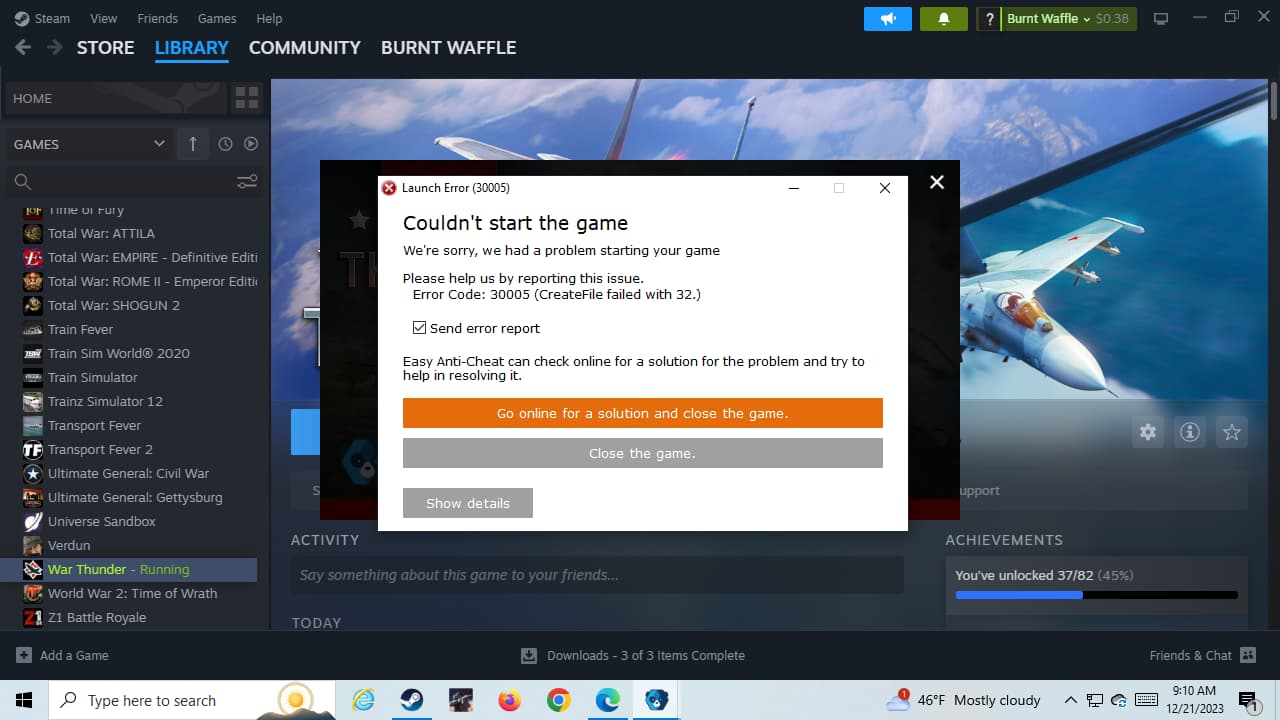
Before you begin: Back up important saves and custom mod files where practical. Do not delete Steam libraries, disable antivirus, clear TPM, change Secure Boot, or flash BIOS merely because a game closes. Write down the exact game and error first.
Identify whether the game, Steam, or the whole PC crashes
Record the game name, whether it returns to the green Play button, freezes, produces a launch error, exits mid-game, or causes a blue screen or full-system restart. Check for a known outage or game-specific update. A full PC crash suggests broader driver, RAM, temperature or storage checks rather than only a Steam problem.
Restart Steam and check the game requirements
Fully exit Steam, restart Windows, then relaunch the game. Check pending Steam downloads, available storage space and whether your Windows version and GPU meet that game’s published requirements. A recently updated game can have new dependencies.
Verify game files safely
In your Steam Library, right-click the affected game or use its gear icon, choose Properties → Installed Files → Verify integrity of game files. Steam checks and replaces missing or changed install files. Back up modifications first: file verification may overwrite manually modified game content.
Update Windows and graphics drivers from trusted sources
Apply relevant Windows updates and get graphics drivers from AMD, NVIDIA, Intel or your computer manufacturer. If crashing started immediately after a driver update, note the version so a technician can evaluate a supported rollback. Avoid unofficial driver bundles or one-click registry cleaners.
Temporarily close nonessential overlays and add-ons
Test without optional recording overlays, FPS utilities, incompatible mods and background launch tools. Avoid disabling core security protections to force a game to run. If an anticheat or Secure Boot/TPM warning appears, stop and use the separate Secure Boot & TPM guide.
Capture the actual crash information
Open Reliability Monitor by searching Windows for “View reliability history.” Review the game crash time, application name and error details. For advanced investigation, Event Viewer → Windows Logs → Application may show a matching error. Save a screenshot or copy the report, without posting personal information publicly.
If multiple Steam games crash, investigate PC stability
Repeated crashes across unrelated games—or blue screens, spontaneous restarts and failures during downloads—may point to RAM stability, GPU drivers, overheating, storage or Windows problems. Avoid assuming the game files are to blame and seek diagnostics before replacing hardware.
Frequently asked questions
Why does a Steam game close immediately after I click Play?
Possible causes include missing game files, pending updates, driver conflicts, launch dependencies or security software interaction. Steam recommends restarting, verifying installed files, updating drivers and reducing nonessential programs.
Will verifying game files delete my saved games?
Verification targets installed game files, but game-specific modifications can be replaced. Confirm where your game stores saves, and back up local saves and modifications before major repair steps.
Does a Steam crash mean I should change Secure Boot or TPM?
No. Firmware settings are a separate issue. Only investigate Secure Boot or TPM when there is a specific security requirement or attestation warning, using the Secure Boot & TPM guide.
Official Steam troubleshooting documentation
Steam’s current guidance takes precedence for client menus and supported repair procedures.
- Steam Support — Games do not run after Preparing to Launch ↗
- Steam Support — Verify integrity of game files ↗
- Steam Support — Steam client troubleshooting ↗
REAL HELP / NO GUESSWORK
Still crashing? Get the real error checked.
Tell SJK which Steam game crashes, when it happens, any error code and your Windows/GPU details. Scope and price are confirmed before paid work. SJK is an independent technical support provider, not affiliated with Valve or Steam.