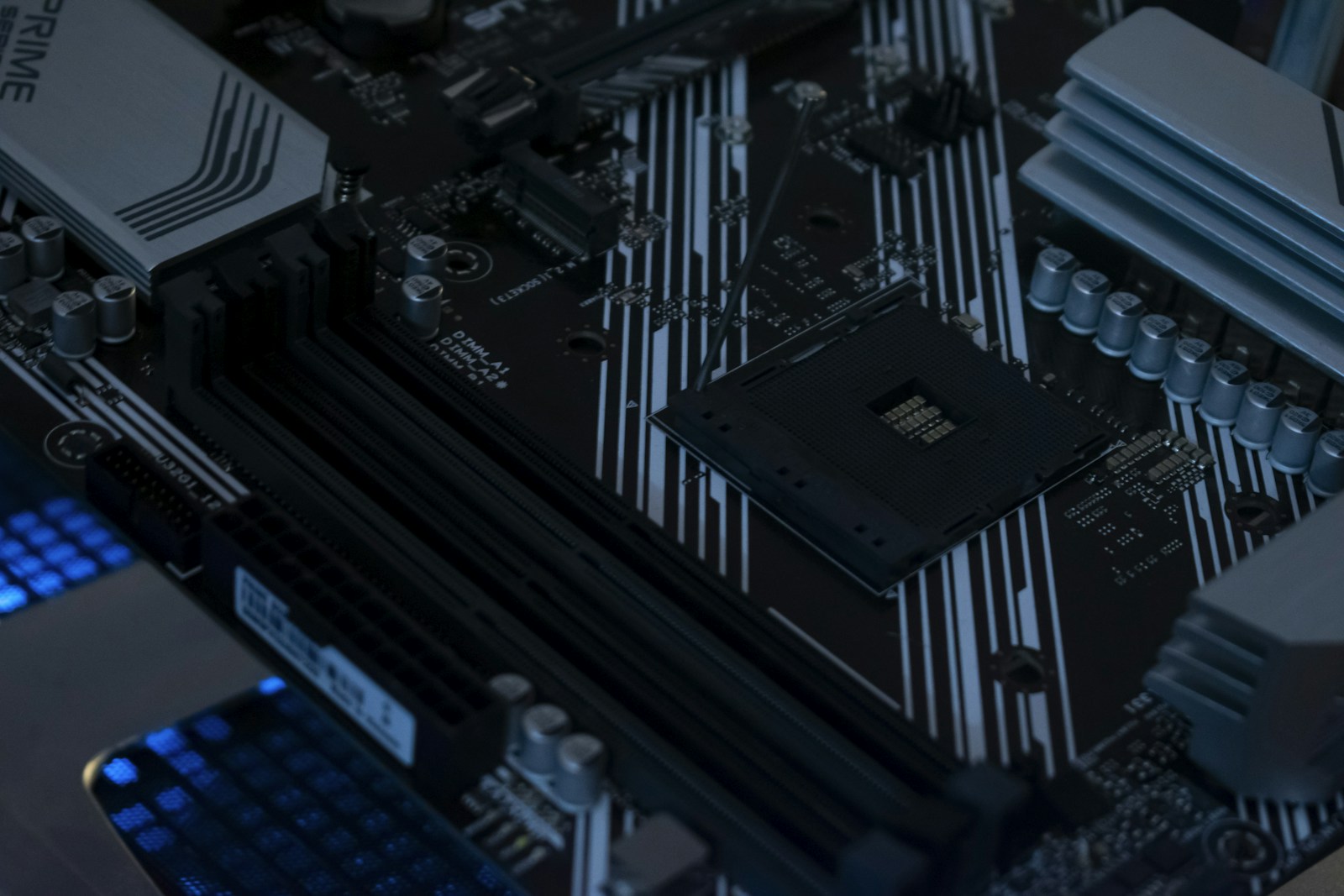
A faster component is not necessarily an upgrade if your board cannot support it or your cooling cannot maintain it. Start with the exact computer model and motherboard revision, not a generic list of 'best' processors or RAM kits.
What you need to know
- Do not mix DDR4 and DDR5 or assume laptop SO-DIMM, desktop DIMM and soldered memory are upgradeable alike.
- Check CPU support against the exact motherboard revision and BIOS version before buying a processor.
- Validate stability at safe default settings before enabling XMP or EXPO memory profiles.
These are general instructions, not a replacement for the exact device service manual. Disconnect power and follow manufacturer precautions. Stop if you find damaged connectors, heat, liquid, swelling, or signs of electrical failure. Never open a power supply enclosure.
Diagnose the bottleneck before shopping
Use Task Manager, real game performance observations, temperature data and drive-health information to identify what is limiting the system. RAM capacity pressure, a CPU-bound game, a slow drive and a GPU limit are different problems with different solutions.
A machine that blue-screens at stock settings should be stabilized before any overclocking profile or performance tuning. Do not buy faster RAM to compensate for unexplained memory errors.
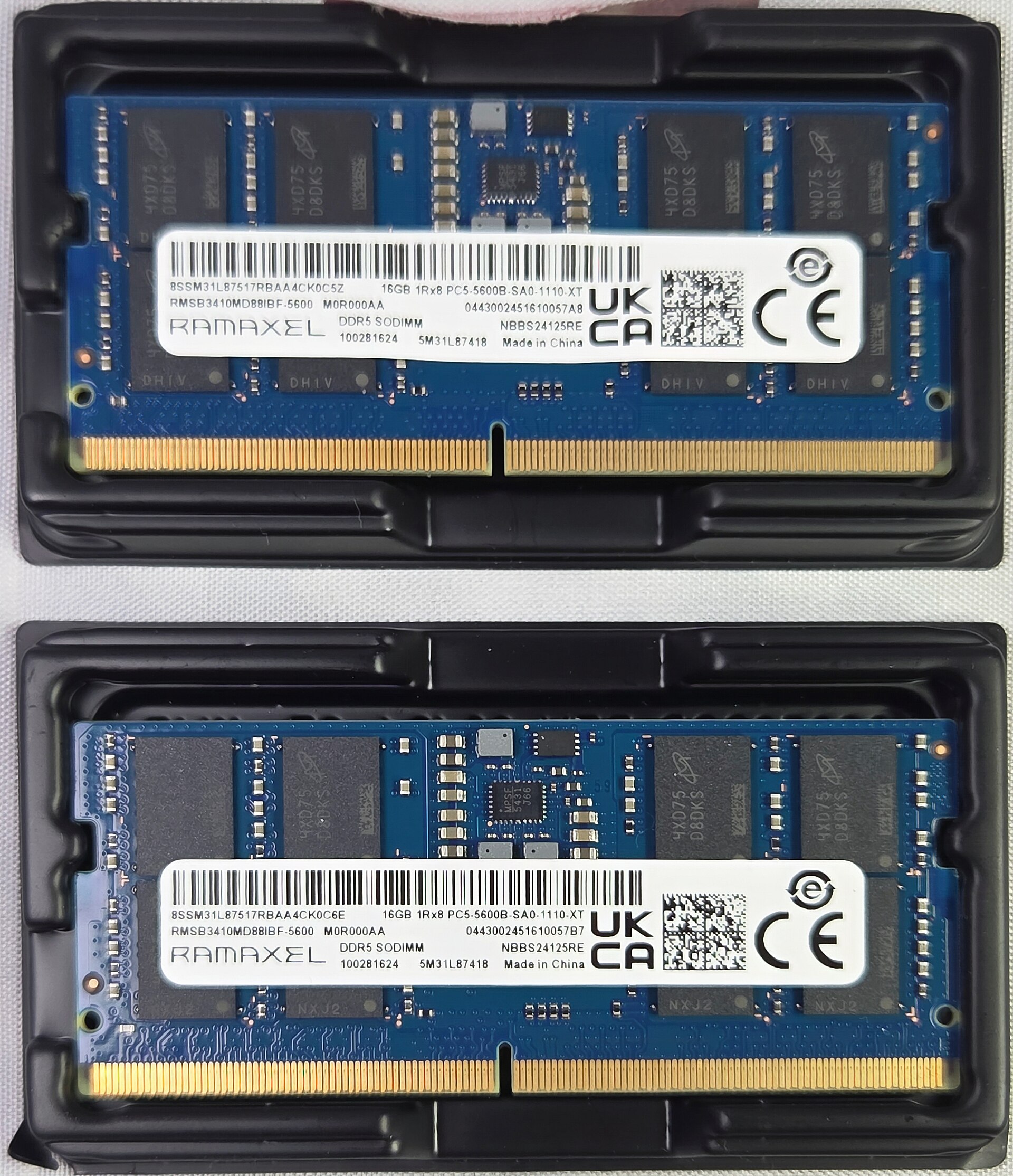
RAM: type, slots and capacity
Look up the system's memory generation, maximum supported capacity, rank or module restrictions and recommended DIMM population. Dual-channel configurations usually require the manufacturer's designated slots; random slot placement can reduce performance or cause boot issues.
Match compatible modules as a tested kit where possible. Reusing old modules of different speed or timing may work at conservative settings, but reliability matters more than the advertised frequency.
CPU: BIOS, socket and power
Even if a CPU physically fits, a motherboard may require a later BIOS or lack electrical and firmware support. Confirm exact SKU, stepping if relevant, supported firmware and whether the CPU includes graphics. Have a recovery plan before any BIOS update and avoid interrupting it.
A faster CPU can draw more power and produce more heat. Check VRM capability, cooler mounting, case airflow and PSU headroom before placing an order.
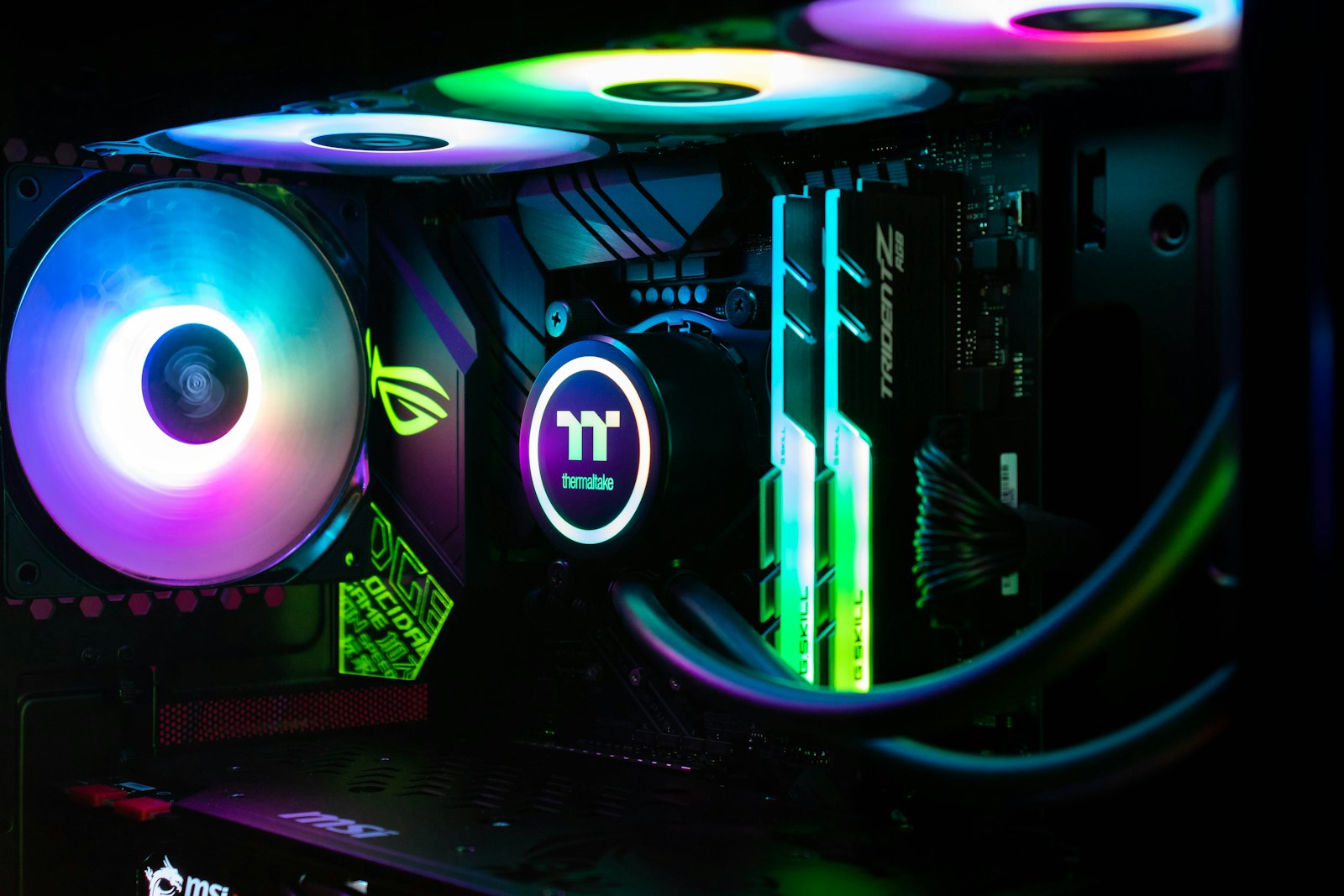
Cooler: fit and correct installation
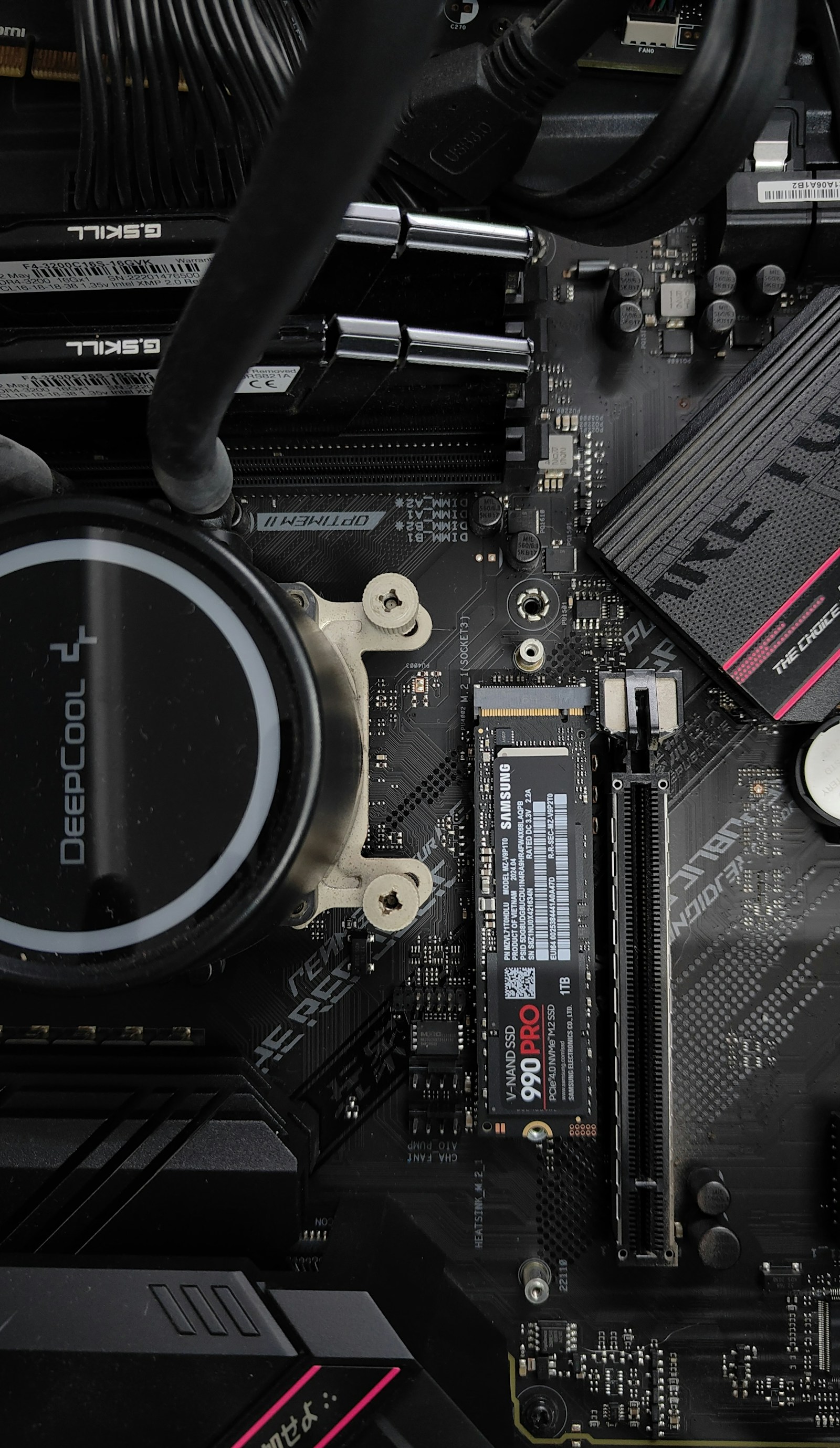
Check socket mounting, RAM clearance, case height and fan orientation. Clean old thermal compound using an appropriate method and apply new paste according to the cooler maker. Use the correct fan or pump headers and confirm actual temperatures in BIOS after power-on.
With an AIO cooler, inspect hoses, mounting pressure and possible leaks. Do not treat every high temperature as a paste problem; verify pump power and fan operation first.
Post-upgrade validation
Boot once at safe default firmware settings. Confirm the recognized CPU and RAM capacity, run an appropriate memory test and use a repeatable real workload to compare stability and performance. Re-enable XMP/EXPO only after baseline operation is stable and supported.
Keep the original components available until the new configuration is proven. If a system refuses to POST, use our No POST diagnostic guide rather than resetting and clearing everything at random.
Sources, specifications & further reading
SJK wrote this article as independent editorial analysis or educational guidance, based on the following published materials. Specifications and prices can change; always verify the current vendor documentation before acting.
Cover photograph: Photograph: Aakash Malik / Unsplash. Real CPU cooler and motherboard hardware.
Need a second set of eyes?
Guides are free and self-service. SJK offers remote support nationwide and on-site work in the Dallas–Fort Worth area, with scope and pricing confirmed before paid service.
REQUEST SJK SUPPORT ↗EXPLORE THE BUILD LAB ↗