The first press of the power button is the highest-anxiety moment of a new build. A careful two-minute visual inspection prevents many avoidable errors—and gives you a useful diagnostic baseline if the system fails to display video.
What you need to know
- Verify physical seating, power connectors and fan paths before connecting AC power.
- A new PC can spend time training RAM on the first boot; do not assume an immediate black screen means hardware failure.
- Do not erase or initialize any preexisting drive unless you have confirmed its contents and backup.
These are general instructions, not a replacement for the exact device service manual. Disconnect power and follow manufacturer precautions. Stop if you find damaged connectors, heat, liquid, swelling, or signs of electrical failure. Never open a power supply enclosure.
Mechanical checks: points 1–5
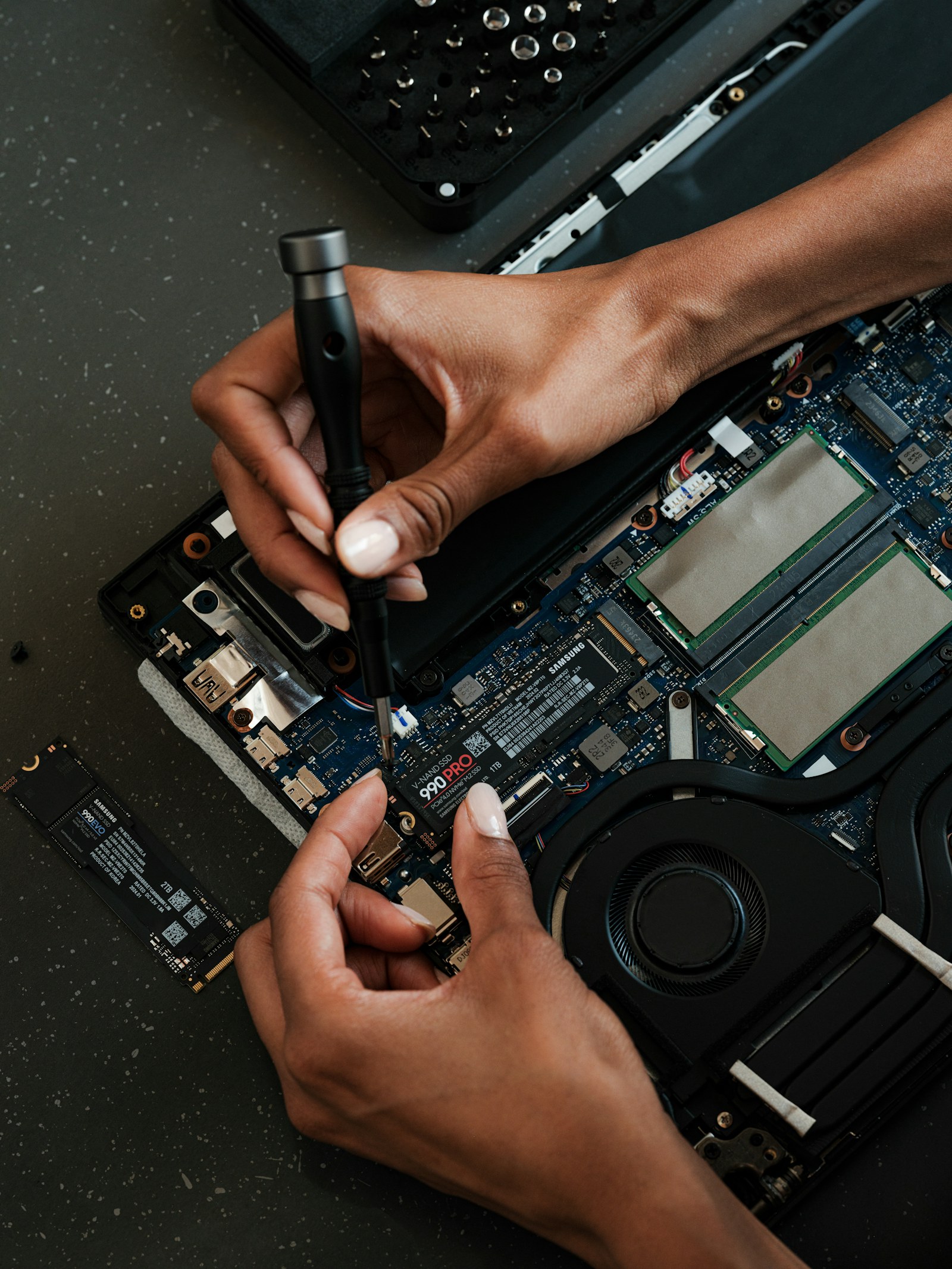
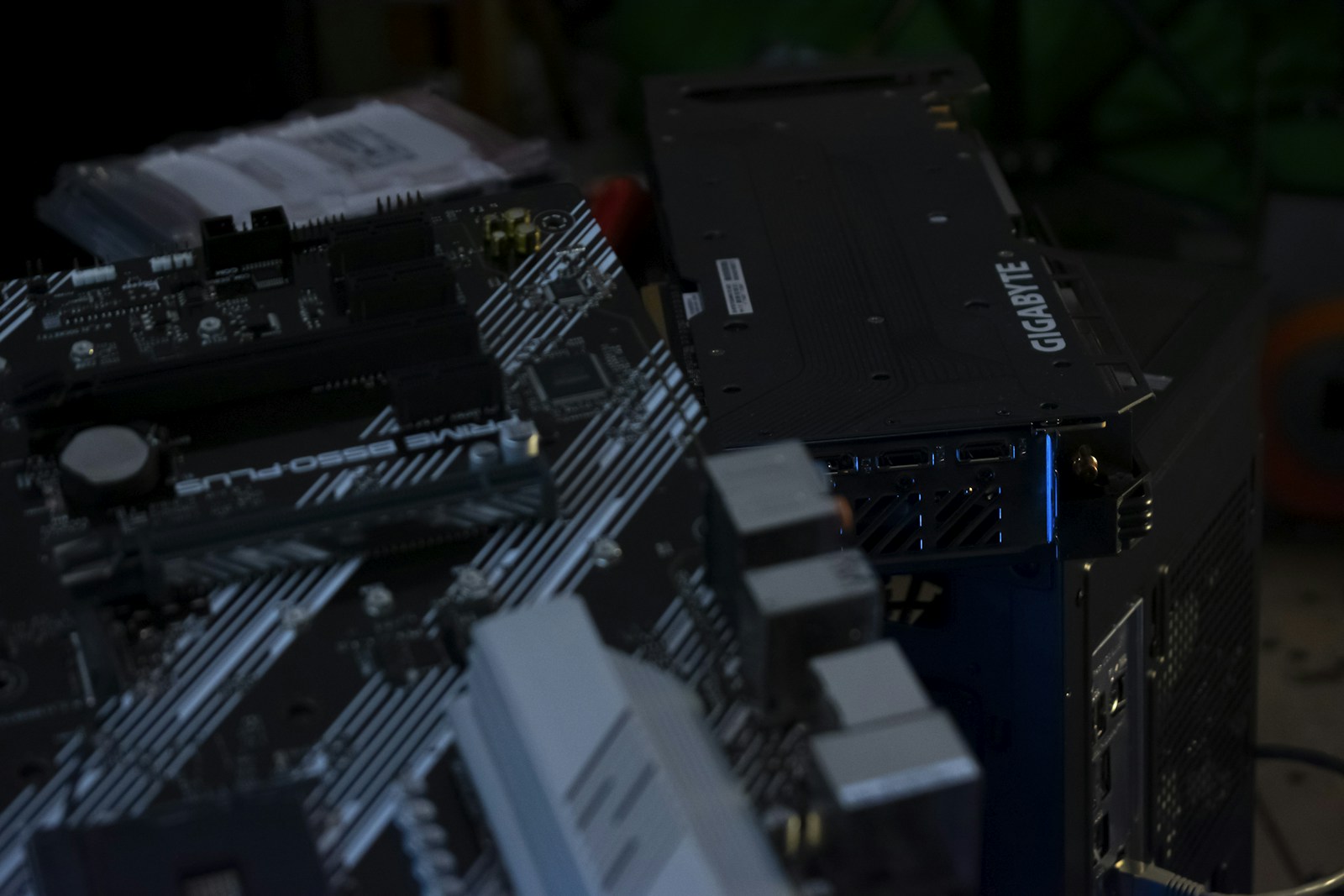
1. Remove all packaging and loose screws from the chassis. 2. Confirm motherboard standoffs align with actual board mounting holes, with no extras touching the underside. 3. Ensure CPU is correctly retained and the cooler bracket is secure. 4. Check that RAM is fully latched in the manual's recommended slots. 5. Confirm M.2 screws, drive heatsinks and protective-pad films have been handled correctly.
Avoid repeatedly removing components just to be thorough. If seating looks correct, move down the checklist methodically rather than introducing new variables.
Power and airflow checks: points 6–10
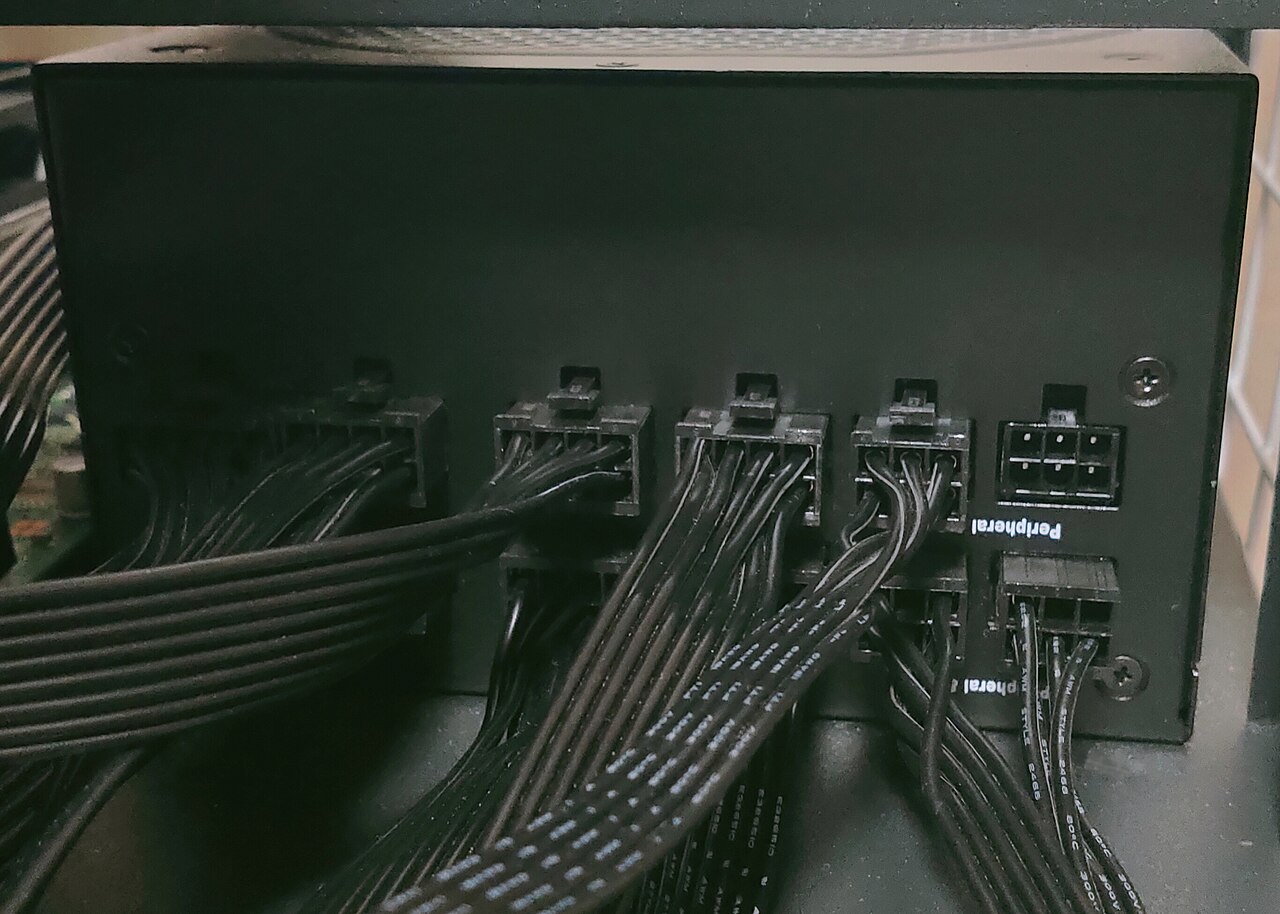
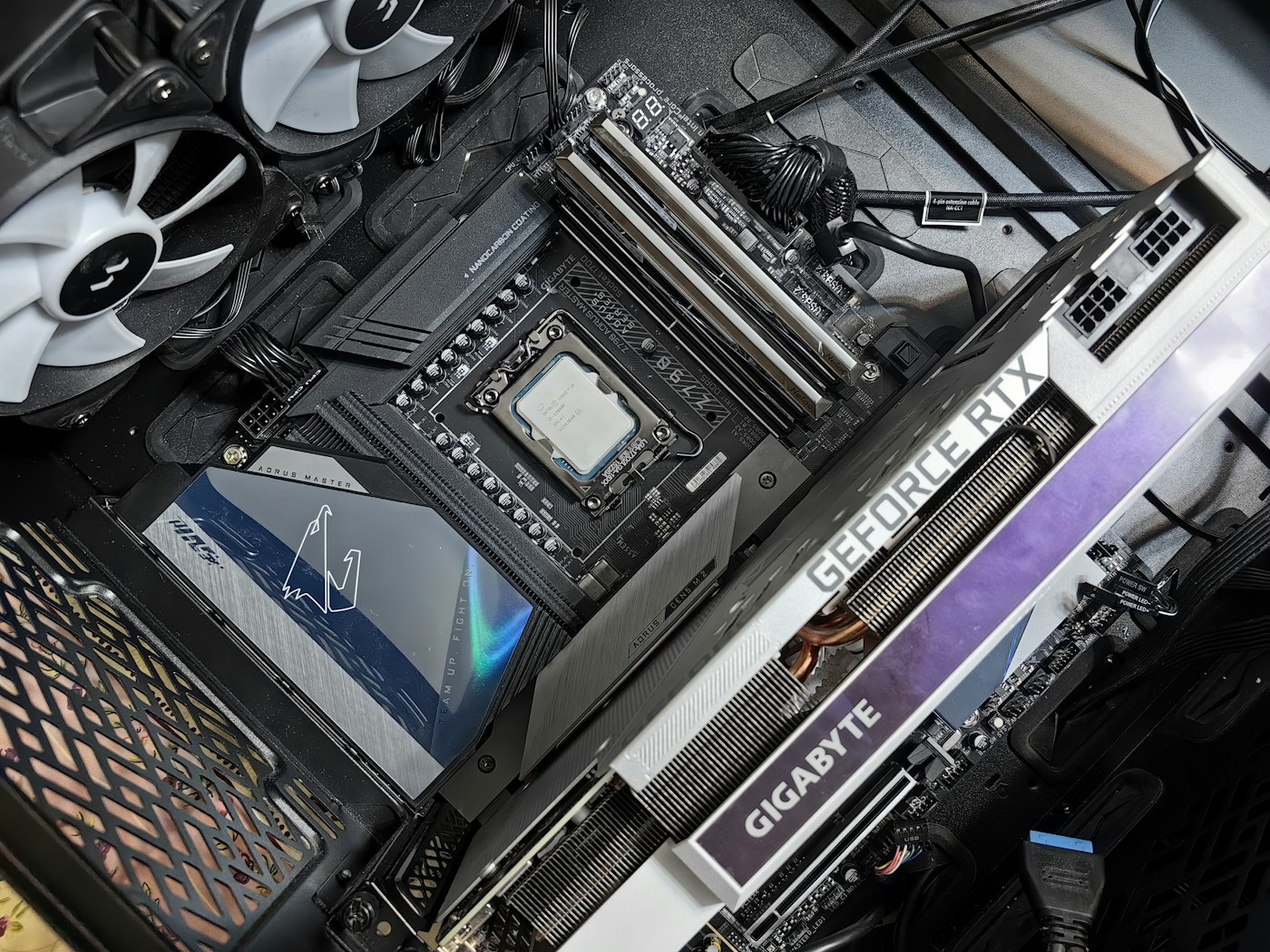
6. Confirm the motherboard 24-pin power cable is fully seated. 7. Confirm the CPU EPS connector near the socket is connected, not confused with PCIe GPU power. 8. Inspect GPU power connector insertion and cable bend clearance. 9. Make sure CPU cooler fan or pump is connected to the correct header. 10. Check case fans and cables are clear of moving blades.
A powered-on cooler can fail even when RGB lighting works. Always inspect the actual fan and pump wiring, not just the lights.
Display and enclosure checks: points 11–15
11. Secure the GPU to the case and engage the PCIe retention latch. 12. Verify your video cable is connected to the discrete GPU when the processor has no integrated graphics. 13. Check the monitor's input selection. 14. Verify front-panel power-button connections against the motherboard manual. 15. Ensure no cable is trapped under a panel or pinched near a hinge.
If using a new graphics card, have a second known-good display cable nearby. It is a small troubleshooting investment.
First BIOS checks: points 16–20
16. Connect AC, then power on and wait for initialization. 17. Observe debug LEDs, POST codes and unusual smells or noises. 18. Enter UEFI and confirm CPU model, total RAM and installed SSD models. 19. Check idle CPU temperature and fan readings before loading the operating system. 20. Confirm intended boot device and protect any existing data before installation.
Initially use stable default settings. Save performance tuning, XMP/EXPO and overclocking for after the machine runs reliably.
If the screen stays black
Check that you are waiting long enough for memory training on a new platform, then inspect the board's diagnostic indicators. Don't blindly clear the TPM or format drives. Use our No POST troubleshooting guide for a safe, recorded series of tests.
Print this page or use the interactive checklist below. The individual checks are simple, but doing them in order is what makes the process reliable.
Interactive pre-flight checklist
Check items as you verify them. This is a browser-only scratchpad; save or print separately if you need a record.
Sources, specifications & further reading
SJK wrote this article as independent editorial analysis or educational guidance, based on the following published materials. Specifications and prices can change; always verify the current vendor documentation before acting.
Cover photograph: Editorial photograph via Unsplash; illustrative image, not a photograph of the reported event.
Need a second set of eyes?
Guides are free and self-service. SJK offers remote support nationwide and on-site work in the Dallas–Fort Worth area, with scope and pricing confirmed before paid service.
REQUEST SJK SUPPORT ↗EXPLORE THE BUILD LAB ↗