Every hardware forum has a favorite upgrade, but a universal 'upgrade this first' list is misleading. Your bottleneck depends on workload, resolution, software and the health of the current components. Spend money after observing the limitation.
What you need to know
- If a drive is failing or the PC is unstable, protect data and address reliability before performance.
- RAM capacity, SSD speed, CPU and GPU power affect different tasks.
- In the 2026 memory market, a targeted improvement can be much better value than rebuilding the entire system.
These are general instructions, not a replacement for the exact device service manual. Disconnect power and follow manufacturer precautions. Stop if you find damaged connectors, heat, liquid, swelling, or signs of electrical failure. Never open a power supply enclosure.
1. Reliability comes before speed
Back up files and inspect SSD health, memory errors, temperatures and random shutdowns before upgrading anything. An unstable PSU or a drive with unreadable sectors turns a performance project into a recovery problem.
If a machine will not reliably boot, troubleshoot it before buying a faster graphics card. An upgrade is not a diagnosis.
2. RAM capacity is not the same as memory speed
When your workload exhausts physical memory and Windows begins paging heavily, additional compatible RAM can improve responsiveness. If your applications already fit comfortably, a much faster kit may provide little noticeable improvement.
Use Task Manager to measure real demand. Check DDR4/DDR5 compatibility and slot configuration. Don't let RAMpocalypse pricing persuade you to buy capacity far beyond your use case.
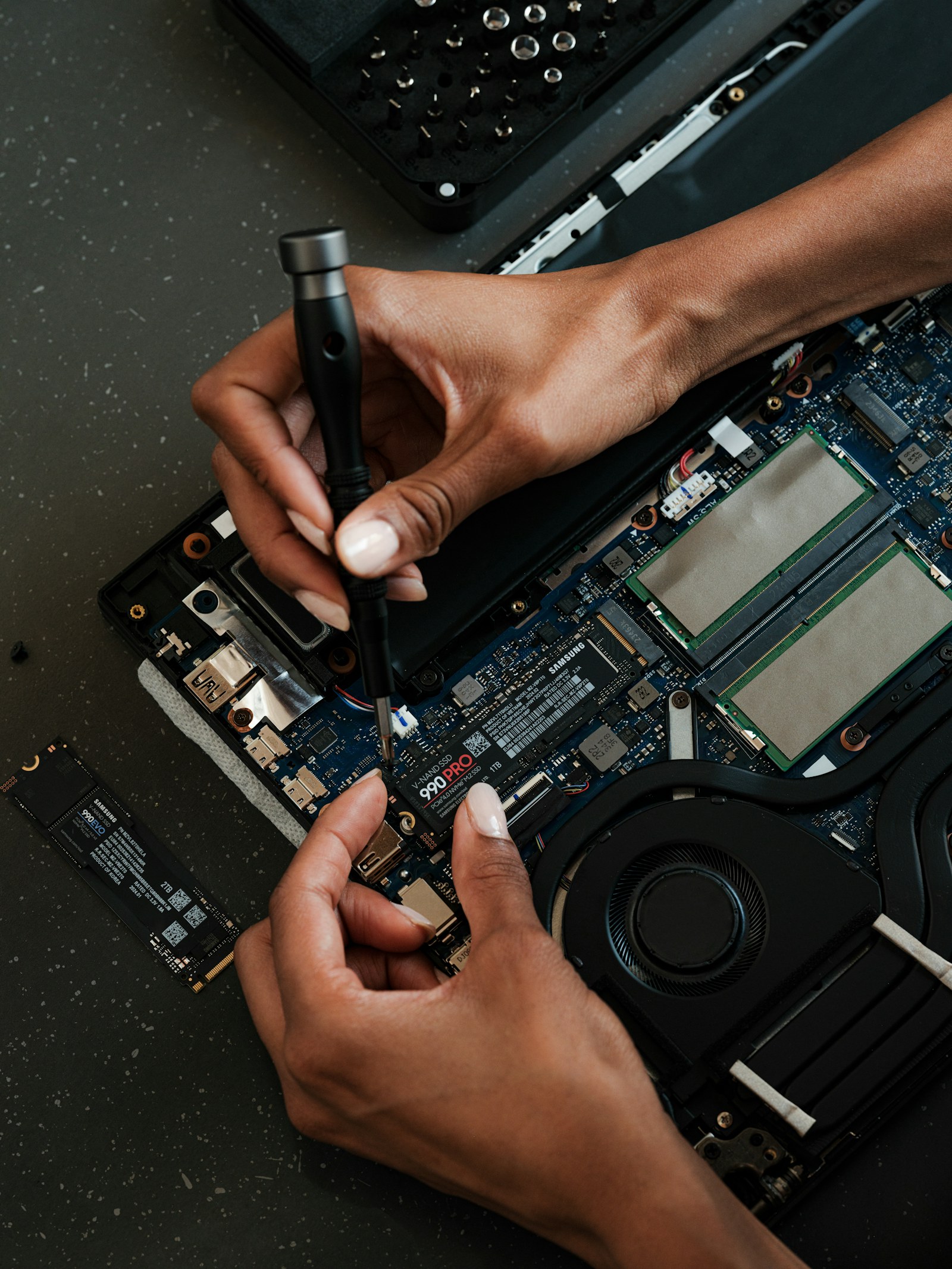
3. SSD upgrades fix storage constraints
Moving from an old mechanical hard drive to a suitable SSD can transform startup and application-loading responsiveness. Replacing an adequate NVMe drive with a faster synthetic benchmark winner may not materially change everyday usage.
Buy for capacity, reliability and support first. Confirm the M.2 interface and preserve an independently verified backup before migrating a boot volume.
4. GPU versus CPU: watch your workload
At higher game resolutions, the GPU often limits visual performance. In simulation games, certain competitive workloads and heavy multitasking, a CPU or memory bottleneck may dominate. Lower settings and compare frame-rate behavior while monitoring utilization and temperatures.
Check that a new graphics card fits physically and that the PSU supports its connectors. Do not choose a GPU solely by its model number or marketing performance claim.
5. When to stop upgrading
When the motherboard, CPU, memory and power supply all need replacement to support one goal, the total may approach the cost of a new system. Compare the complete project against a warranted prebuilt or a planned new platform.
If you need help defining your next step, create a PCPartPicker list and compare actual performance evidence. A thoughtful upgrade plan is cheaper than buying parts twice.
Sources, specifications & further reading
SJK wrote this article as independent editorial analysis or educational guidance, based on the following published materials. Specifications and prices can change; always verify the current vendor documentation before acting.
Cover photograph: Photograph: Andrey Matveev / Unsplash. Illustrative desktop hardware.
Need a second set of eyes?
Guides are free and self-service. SJK offers remote support nationwide and on-site work in the Dallas–Fort Worth area, with scope and pricing confirmed before paid service.
REQUEST SJK SUPPORT ↗EXPLORE THE BUILD LAB ↗